> ## Documentation Index
> Fetch the complete documentation index at: https://docs.trykintsugi.com/llms.txt
> Use this file to discover all available pages before exploring further.
# Creating and Managing API Keys
> Step-by-Step Guide to Getting API Keys from the Kintsugi Platform
# Creating and Managing API Keys
**API keys authenticate your requests** to the Kintsugi API. This guide will walk you through creating, managing, and securing your API keys with screenshots and step-by-step instructions.
API keys are essential for accessing the Kintsugi API programmatically. They provide secure authentication for your applications and integrations.
Generate an API key in just a few clicks
Keep your keys secure and compliant
Explore our comprehensive API docs
Verify your API key works correctly
## Create and manage keys in the Kintsugi app
Create and manage your API keys in the main Kintsugi app.
### Sign Up or Log In
Visit the [Kintsugi Platform](https://app.trykintsugi.com/).
If you don’t already have an account, click on the **Sign Up** button and follow the instructions to create an account.
If you already have an account, click on the **Log In** button and enter your credentials to access the platform.
### Navigate to Configuration Section
After logging in, locate the **Configuration option** in the bottom-left corner of the sidebar.
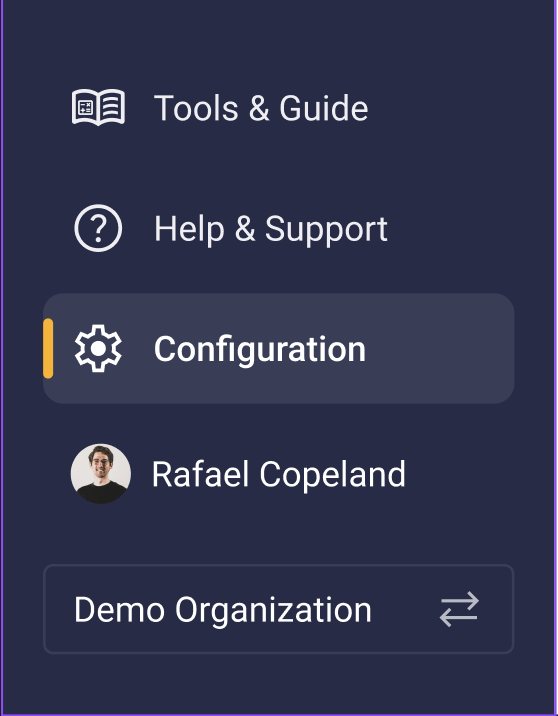 Under the **Configuration Section** locate API Keys as shown in the screenshot below.
 ### Access the API Keys Section
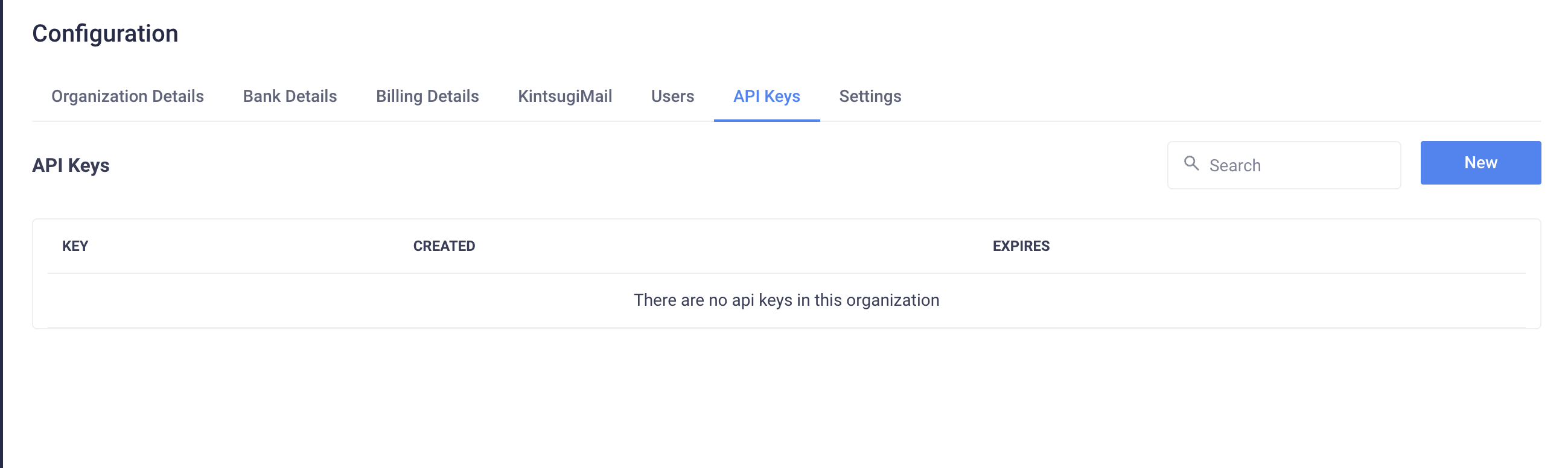
Once in **Configuration Section** click API Keys section.
Here, you can search, manage, and generate new API keys for your organization.
### Access the API Keys Section
Once in **Configuration Section** click API Keys section.
Here, you can search, manage, and generate new API keys for your organization.
 ### Create a New API Key
Click the **New** button to generate an API key.
Once you click on **New**, you'll be prompted to select the expiration time for the API key.
### Create a New API Key
Click the **New** button to generate an API key.
Once you click on **New**, you'll be prompted to select the expiration time for the API key.
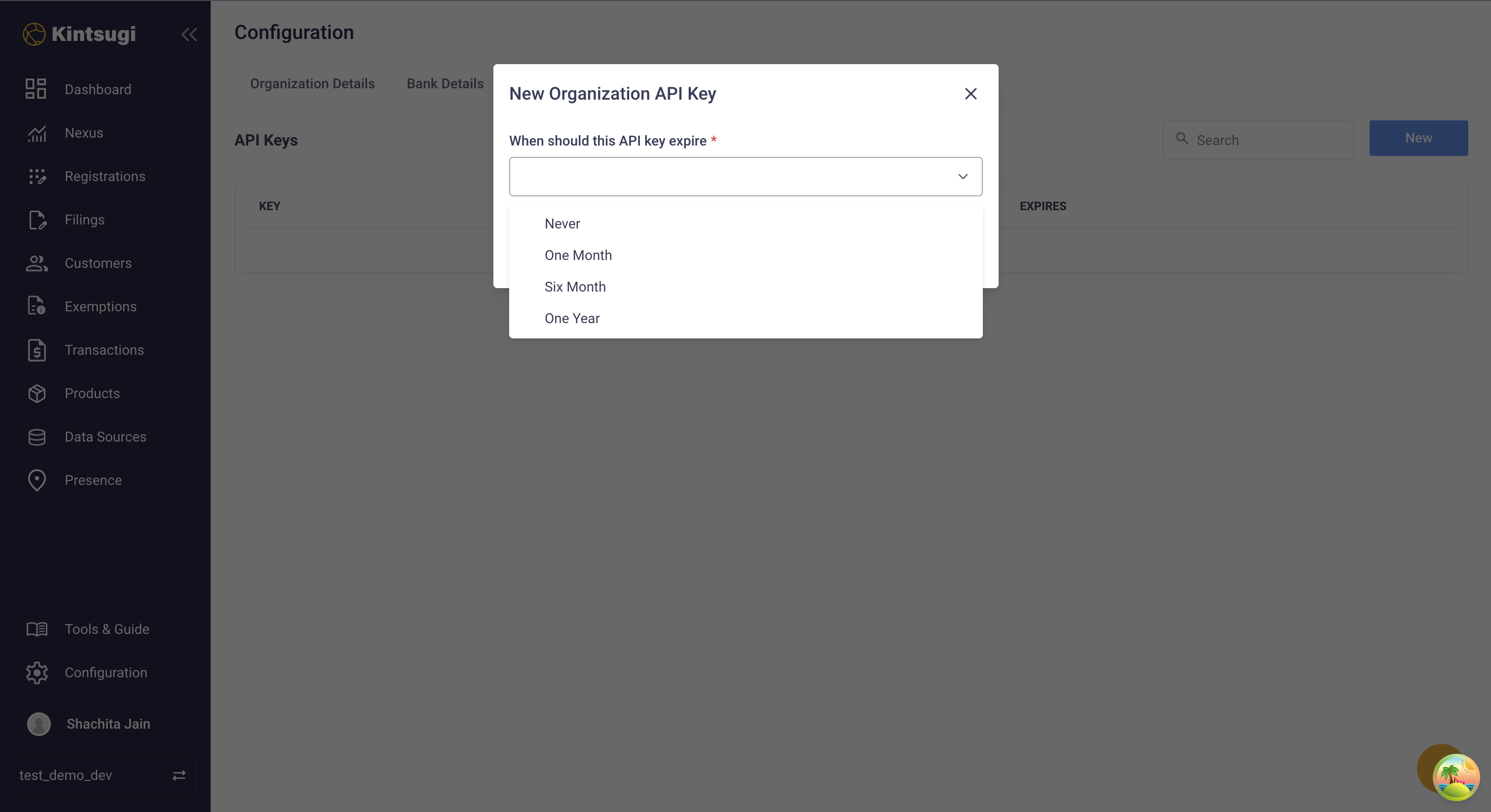 Choose the expiration period that suits your needs. For example, if you want the key to be valid for a year, select One year.
### Copy and Secure Your API Key
1. Copy the API Key Immediately.
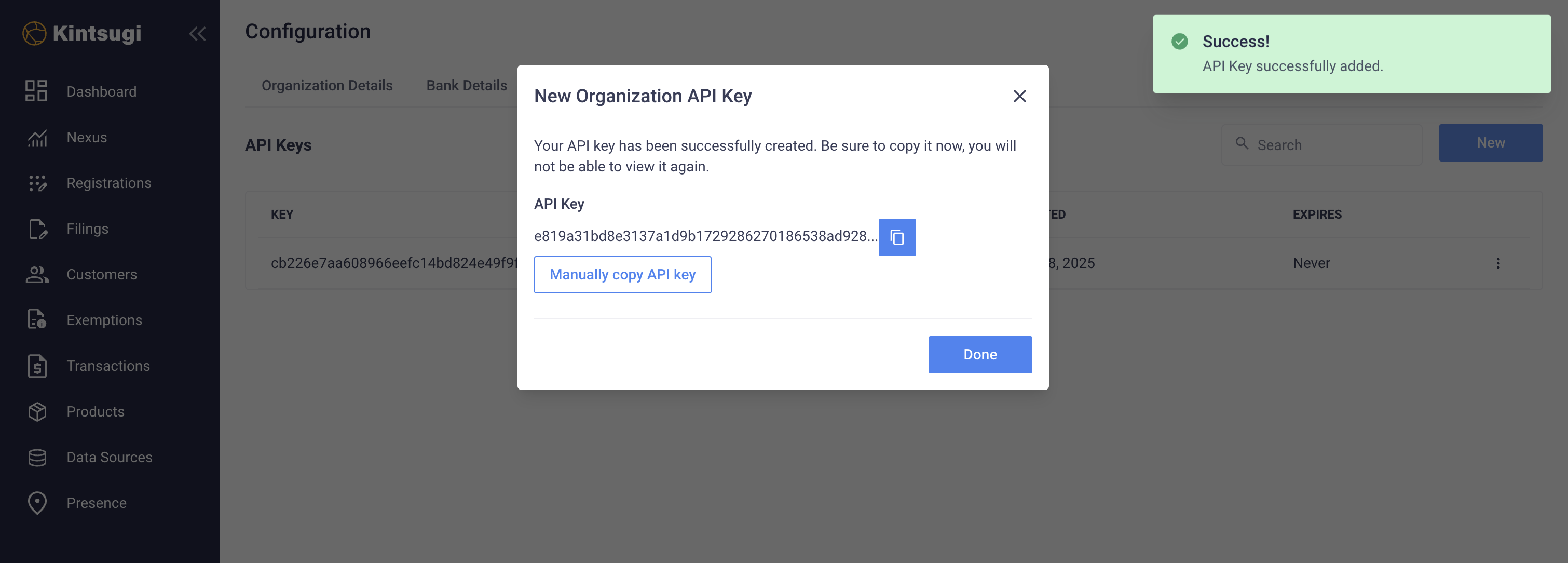
Click the **copy icon** or **Manually copy API key** button to copy the key.
You will not be able to view this key again, so ensure you store it in a secure location.
After copying, click **Done** to exit the popup.
Choose the expiration period that suits your needs. For example, if you want the key to be valid for a year, select One year.
### Copy and Secure Your API Key
1. Copy the API Key Immediately.
Click the **copy icon** or **Manually copy API key** button to copy the key.
You will not be able to view this key again, so ensure you store it in a secure location.
After copying, click **Done** to exit the popup.
 ### Viewing and Managing Your API Keys
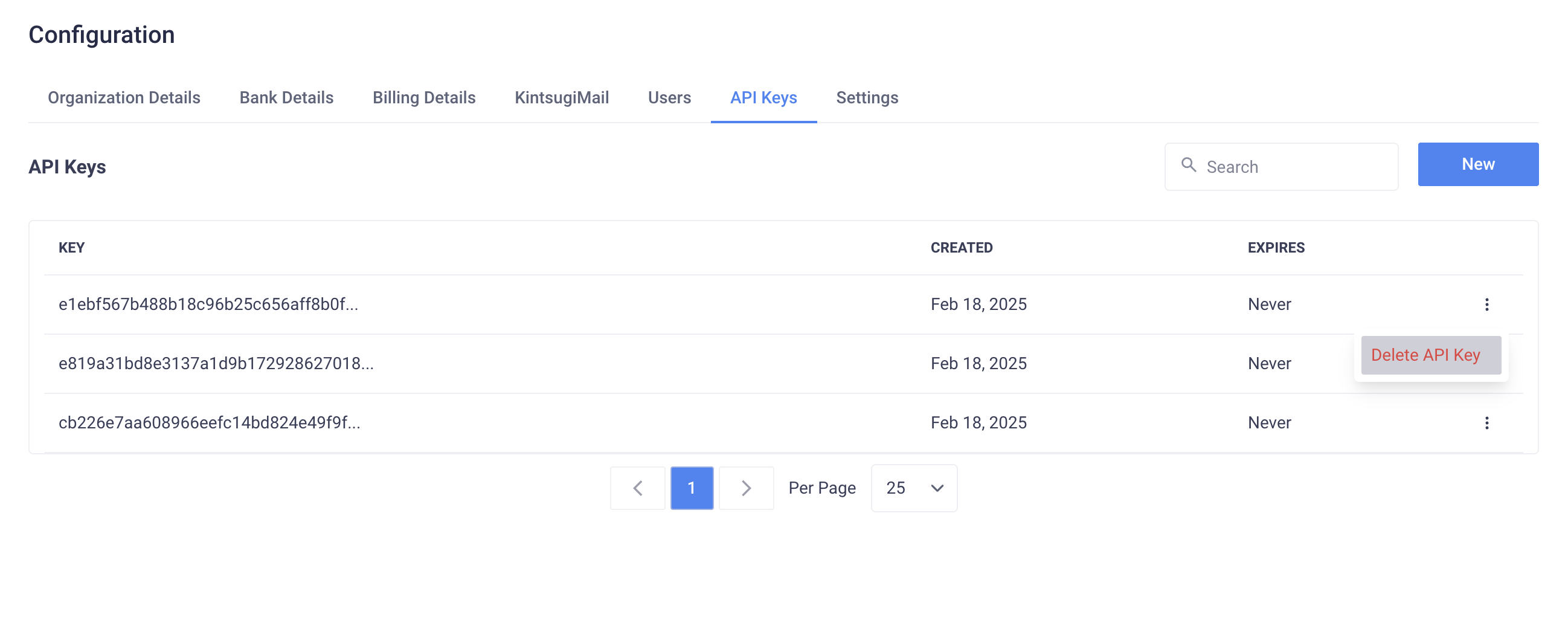
You can view all generated API keys along with their **Key, Created Date, and Expiry Status**.
Use the **search bar** to quickly find a specific key.
To delete a key, click the three-dot menu (⋮) next to it and select **Delete API Key**.
### Viewing and Managing Your API Keys
You can view all generated API keys along with their **Key, Created Date, and Expiry Status**.
Use the **search bar** to quickly find a specific key.
To delete a key, click the three-dot menu (⋮) next to it and select **Delete API Key**.
 *API Keys are scoped to an organization and will remain active until the organization is deleted or the key is deleted. You can create multiple API keys to cycle them out periodically.*
*Users can only create API keys within a Test Organization or a Paid Organization. Creating API keys in other organization types is disabled.*
## Next Steps
Verify your API key works correctly
Explore available endpoints
Connect your applications
## Need Help?
* **Can't find API Keys section**: Check you're in a Test or Paid organization
* **Permission denied**: Contact your organization admin
* **Key not generating**: Try refreshing the page and try again
* **Expiration options**: Choose based on your security requirements
* **Can't find old key**: Keys are only shown once for security
* **Key not working**: Check if it's expired or deleted
* **Multiple keys**: Create new keys for different applications
* **Key rotation**: Delete old keys and create new ones regularly
* **Key compromised**: Delete immediately and create new key
* **Suspicious activity**: Check usage logs in your dashboard
* **Storage best practices**: Use environment variables, never hardcode
* **Team access**: Share keys securely through password managers
Get help from our support team
Chat with us in real-time
Browse our comprehensive API docs
Connect with other developers
*API Keys are scoped to an organization and will remain active until the organization is deleted or the key is deleted. You can create multiple API keys to cycle them out periodically.*
*Users can only create API keys within a Test Organization or a Paid Organization. Creating API keys in other organization types is disabled.*
## Next Steps
Verify your API key works correctly
Explore available endpoints
Connect your applications
## Need Help?
* **Can't find API Keys section**: Check you're in a Test or Paid organization
* **Permission denied**: Contact your organization admin
* **Key not generating**: Try refreshing the page and try again
* **Expiration options**: Choose based on your security requirements
* **Can't find old key**: Keys are only shown once for security
* **Key not working**: Check if it's expired or deleted
* **Multiple keys**: Create new keys for different applications
* **Key rotation**: Delete old keys and create new ones regularly
* **Key compromised**: Delete immediately and create new key
* **Suspicious activity**: Check usage logs in your dashboard
* **Storage best practices**: Use environment variables, never hardcode
* **Team access**: Share keys securely through password managers
Get help from our support team
Chat with us in real-time
Browse our comprehensive API docs
Connect with other developers